
Introduction: Confession of a Digital Hoarder
Let’s be real for a second. If you are a designer or a content creator, your desktop probably looks like a war zone. I used to have a folder named “New Folder (3)” inside “Inspiration_Final_Final,” filled with random screenshots, memes, and design assets I swore I would use “someday.”
Spoiler alert: I never found them again.
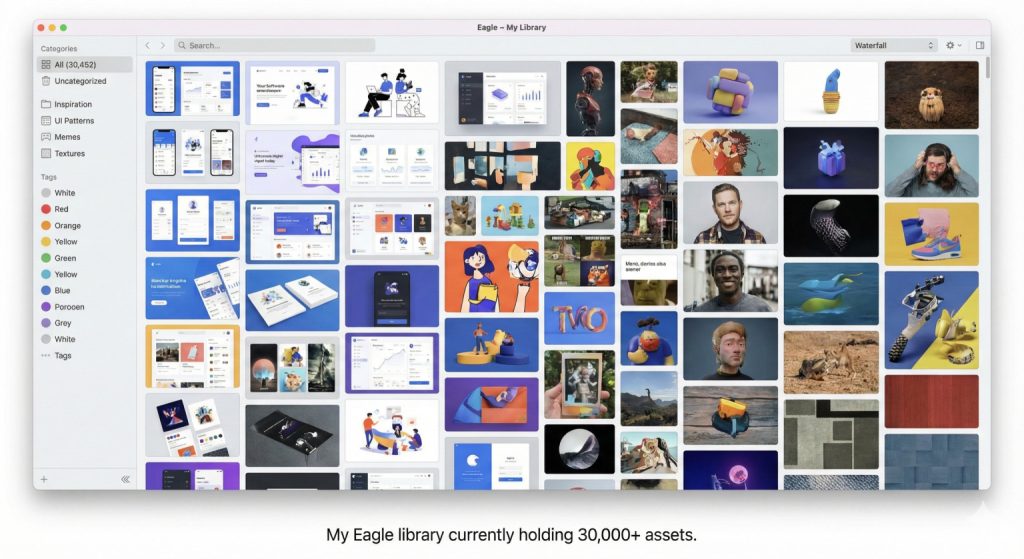
I tried Pinterest (good, but online only). I tried default OS folders (too slow). Then I found Eagle. I’ve been using it for about two years now to manage over 30,000 assets, and honestly? I don’t know how I survived without it.
What Exactly is Eagle?
Think of Eagle as “Lightroom for your inspiration,” or a local, offline version of Pinterest on steroids.
It is a digital asset management tool specifically built for collecting, organizing, and searching through images, videos, fonts, and 3D assets. Unlike standard folders, Eagle keeps everything visual. You don’t read filenames; you see the content.
The Features That Actually Matter
1. The “Drag and Drop” Browser Extension
This is the feature that got me hooked. With the Eagle extension (Chrome/Edge), you can just drag any image on a website and drop it to save it instantly.
- My favorite trick: You can press
Alt + Right Clickon any image to save it instantly without a popup. It feels like magic.
2. Filtering by Color (The “Wow” Factor)
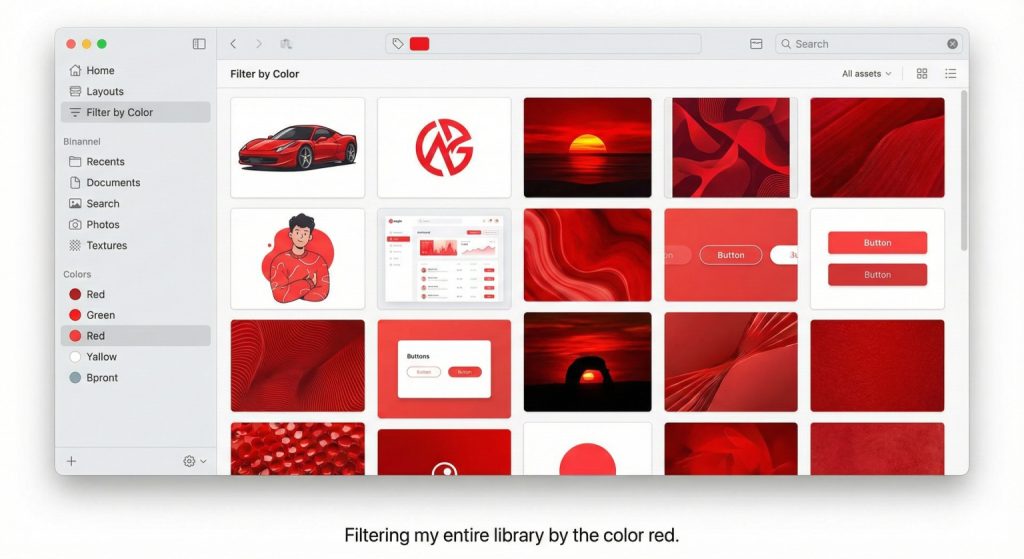
This sounds simple, but it is a game-changer for mood boarding. If a client says, “I want a cyberpunk vibe,” I just click the “Purple” and “Neon Blue” color filters in Eagle. Boom. It instantly shows me every image in my library that matches those colors.
3. It Handles Everything
It’s not just for JPEGs. I throw everything at it: Photoshop files (.psd), Illustrator files (.ai), fonts, videos, and even audio effects. It previews them all natively without needing to open heavy Adobe software.
Pros and Cons: The Honest Truth
The Pros (Why I Adore It):
- Buy Once, Use Forever: In a world where every app wants a monthly subscription (looking at you, Adobe), Eagle charges a one-time fee. This is incredibly rare and respectable in 2026.
- Insane Speed: Even with 30k+ files, the search bar is instant. No lag.
- Smart Folders: I set up a smart folder that automatically collects any file tagged “UI Design” added in the last 7 days. It organizes itself.
The Cons (It’s Not Perfect):
- Local Storage Heavy: Eagle stores files locally on your hard drive. If you have a small SSD (like 256GB), it will fill up fast. I had to move my library to an external SSD.
- No Mobile App (Yet): This is my biggest gripe. I can’t browse my library on my iPhone when I’m on the go. It is strictly a desktop app (Mac/Windows).
Who Is This For?
- UI/UX Designers: To collect button styles, landing page layouts, and interactions.
- YouTubers: To manage your meme collection, sound effects, and B-roll footage.
- Digital Artists: To organize reference photos and poses.
Final Verdict
If your downloads folder gives you anxiety, you need this tool. Eagle transformed my workflow from “chaotic mess” to “organized pro.” It is one of the few software purchases I have never regretted.
My Rating: ⭐⭐⭐⭐⭐ (5/5) — Mainly because of the “No Subscription” model.