Introduction: My Secret Shame
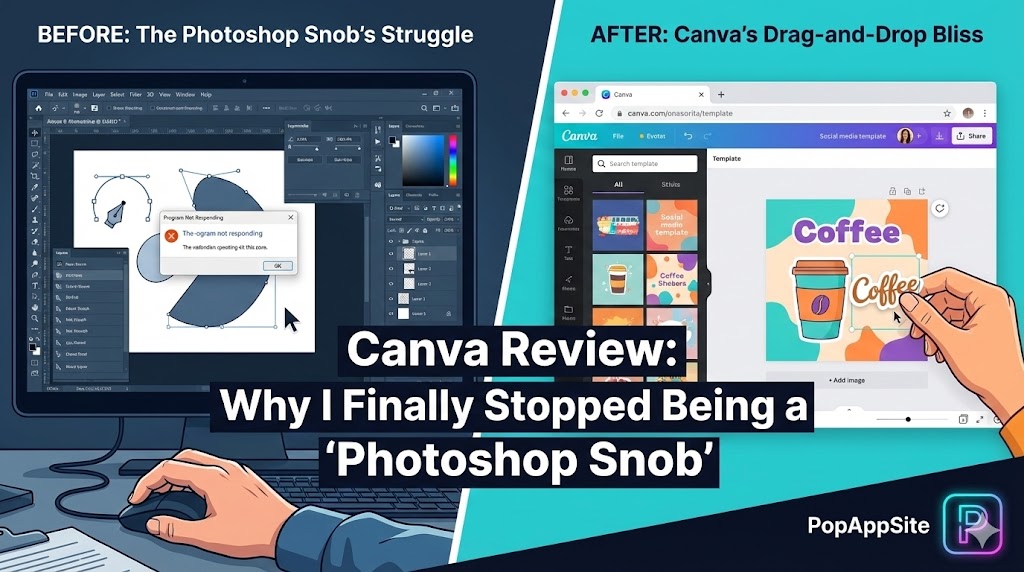
For years, I was a design snob. If it wasn’t made in Adobe Photoshop or Illustrator, I didn’t consider it “real design.” I used to roll my eyes when clients mentioned Canva. “That’s for making bake sale flyers,” I scoffed.
Then came The Day. I had 30 minutes to create 10 different Instagram stories, a YouTube thumbnail, and a LinkedIn banner. Photoshop was crashing (as usual). In a panic, I opened Canva.
I finished everything in 20 minutes. The client loved it. They didn’t even ask “Did you make this in Canva?” That was the day I swallowed my pride. Now, Canva is open in my browser tab 24/7. It didn’t replace Photoshop, but it definitely replaced my stress.
What is Canva?
Canva is design for the rest of us. It’s a drag-and-drop graphic design tool that lives in your browser. While professional tools are like flying a jet plane (complicated, manual controls), Canva is like a self-driving Tesla. You just tell it where you want to go, and it gets you there.
The Features That Hooked Me
1. The “Magic Switch” (Formerly Magic Resize)
This feature alone is worth the Pro subscription. Let’s say I design a perfect Instagram Post. My boss then says, “Hey, can we get this as a Story and a Facebook header too?” In the old days, I’d have to rebuild the file three times. In Canva, I click “Magic Switch”, select the new formats, and boom—it automatically resizes and rearranges the elements. It’s not always perfect, but it saves me hours of grunt work.
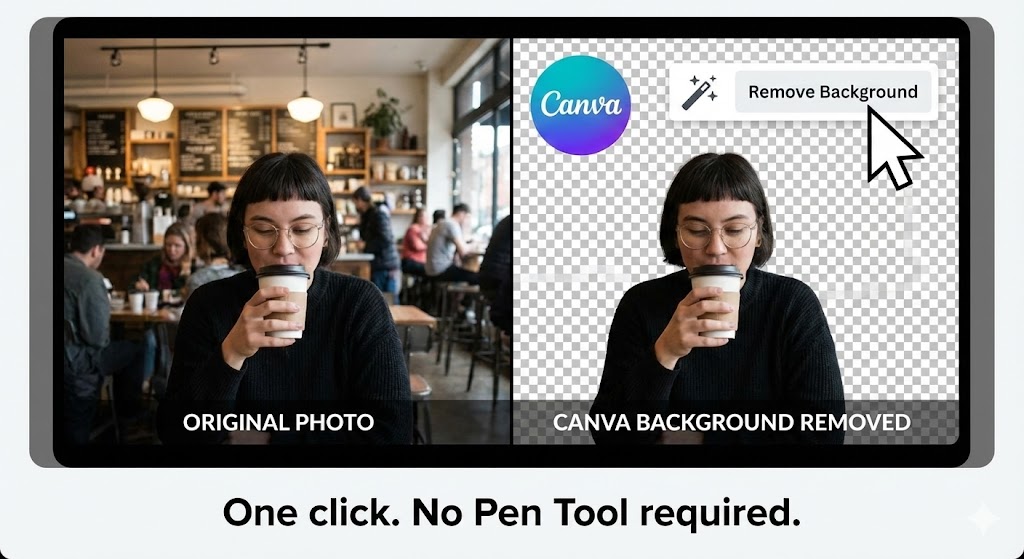
2. The “Background Remover” (The Gateway Drug)
I remember spending 20 minutes in Photoshop using the Pen Tool to cut a person out of a photo. In Canva, I click one button: “Edit Photo > BG Remover.” Five seconds later, it’s done. And honestly? It’s often cleaner than my manual work. It feels like black magic.
3. The Asset Library
This is underestimated. In Photoshop, if I need a “cute arrow” or a “picture of a coffee cup,” I have to go to a stock photo site, download it, import it… In Canva, I just type “Coffee” in the Elements tab, and drag it onto the canvas. The speed is addictive.
The Honest Truth: Where Canva Fails
I promised to be honest, so here is the bad stuff. Layer Management is a Nightmare. If you have a complex design with 50 elements, trying to select the one at the bottom is frustrating. You find yourself clicking furiously, trying to grab that one text box behind the image. It’s getting better with the new “Layers” panel, but it’s still clunky compared to Adobe.
Also, the “Canva Look.” If you use the templates exactly as they are, people will know. You have to customize them, or your brand will look like everyone else’s.
Pros and Cons
The Pros:
- Speed: From idea to JPEG in under 5 minutes.
- Collaboration: I can send a link to my team, and they can fix a typo without me needing to re-export the file.
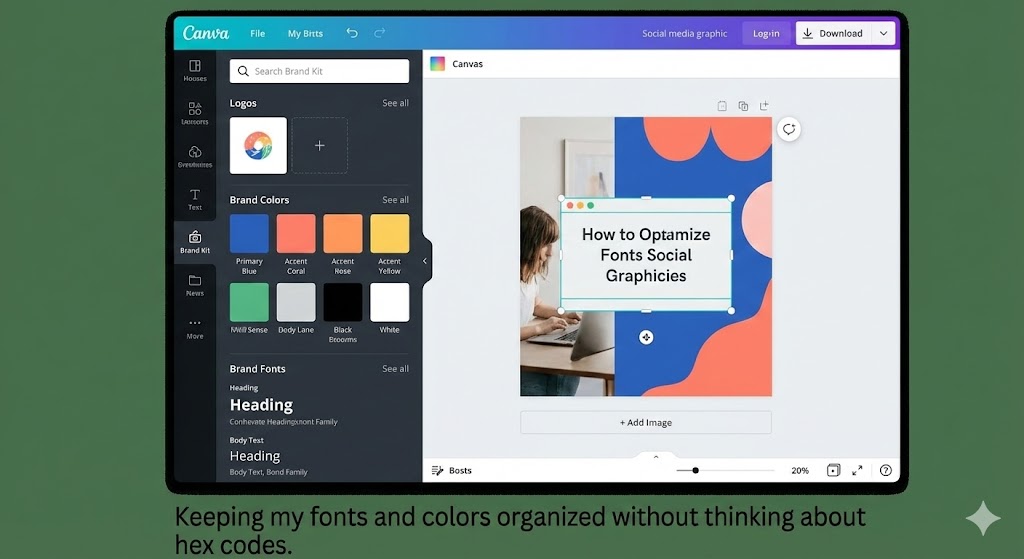
- Brand Kit: My fonts, logos, and colors are always right there. No more hunting for the logo file.
The Cons:
- No Vector Control: You can’t draw custom vector shapes like in Illustrator. You are limited to pre-made elements.
- Snapping Issues: Sometimes the “smart guides” (the pink lines) force your element to snap to the wrong place, and you have to fight it.
- Subscription: The best features (Magic Resize, BG Remover, Premium Assets) are locked behind the “Canva Pro” paywall ($10-$15/month).
Who Is This For?
- Social Media Managers: It is mandatory survival gear.
- Small Business Owners: You don’t need to hire a designer for every sale announcement.
- Bloggers/YouTubers: For thumbnails and featured images.
Final Verdict
Canva is the McDonald’s of design. Is it “gourmet”? No. But it is fast, consistent, and exactly what you need when you are hungry for content. I still use Photoshop for high-end retouching, but for 90% of my daily tasks? I’m a Canva convert.
My Rating: ⭐⭐⭐⭐⭐ (4.8/5) — Deducted 0.2 points because selecting layers can still be annoying.