Introduction: Why I Cheated on VLC
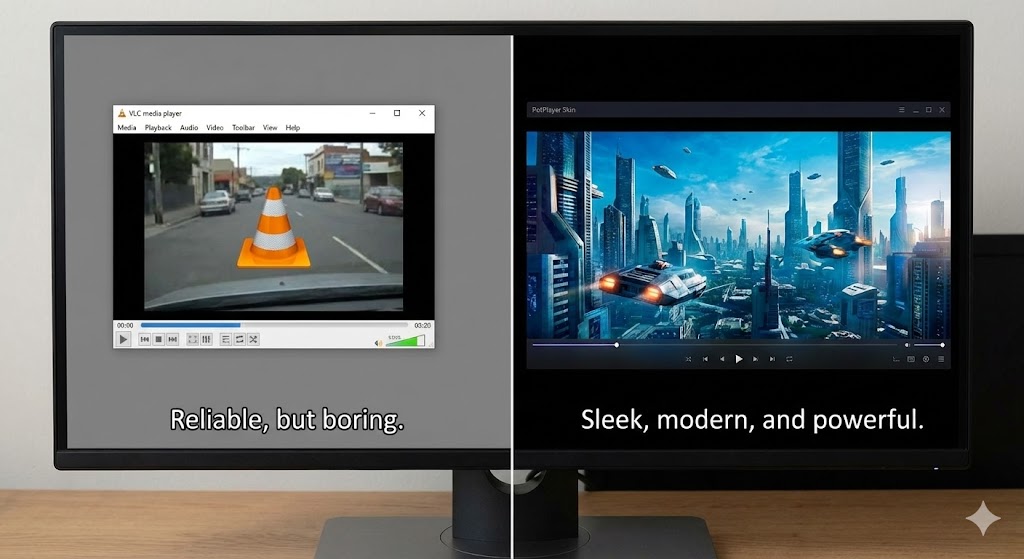
For years, the advice has been the same: “If you can’t play a video file, download VLC.” I get it. VLC is a tank. It plays everything. But let’s be honest… VLC is ugly. It looks like software from Windows XP. The interface is clunky, the skinning system is a nightmare, and the orange traffic cone icon haunts my dreams. I wanted something that played everything and looked good doing it. Enter PotPlayer. It’s faster. It’s prettier. And it has more features than a spaceship. Once I switched, I looked at VLC the same way I look at my ex: “Thanks for the memories, but I’ve moved on to someone hotter.”
What is PotPlayer?
PotPlayer is a free media player developed by Kakao (the Korean tech giant). It is actually the spiritual successor to the legendary KMPlayer. If Windows Media Player is a tricycle, and VLC is a reliable Volvo, PotPlayer is a custom-tuned street racer. It is designed for power users. It supports hardware acceleration (DXVA, CUDA, QuickSync) right out of the box, meaning it uses your graphics card to play 4K/8K videos smoothly instead of choking your CPU.
The Features That Blew My Mind
1. The “Borderless” Mode & Skins
I am superficial. I like my apps to look sexy. PotPlayer has the best skinning engine in the world. My favorite feature? “Direct3D 9 Skin Mode”. It makes the player borderless. No ugly grey title bar. No window frames. Just the video floating on your desktop. There are skins that make it look like a Mac app, a YouTube player, or a minimal piece of glass. It makes watching a movie feel immersive, even on a 13-inch laptop.
2. Dual Subtitles (The Language Learner’s Hack)
This is a game-changer if you watch Anime or foreign films. PotPlayer can display two subtitles at once.
- Top of screen: English
- Bottom of screen: Japanese/Korean/Chinese I use this to learn languages. You can customize the font, size, and position of each subtitle independently. VLC can do this, but you need a PhD in engineering to set it up. In PotPlayer, it’s just Right Click -> Subtitles -> Add Secondary Subtitle.
3. The “H/W” Button (Performance)
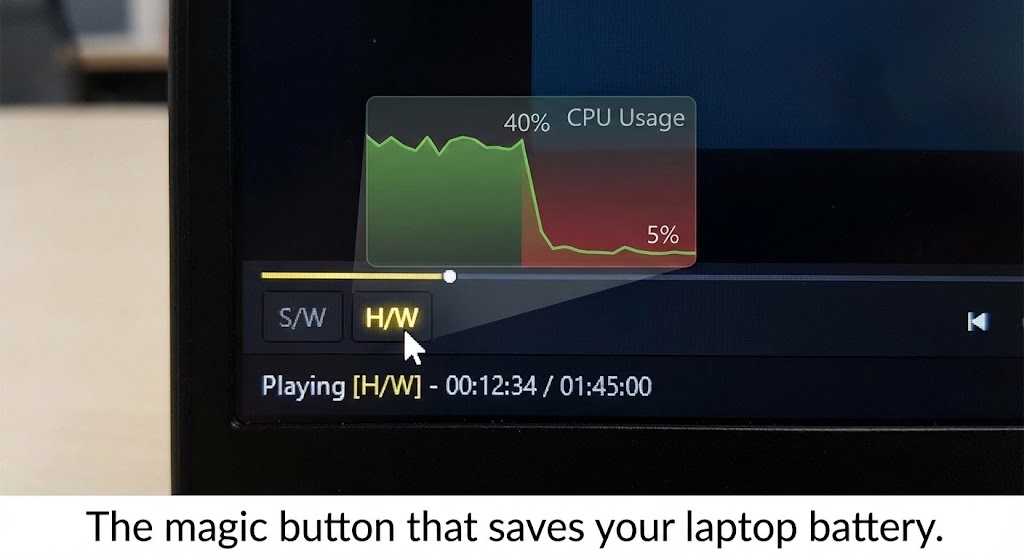
On the bottom left of the player, there is a tiny button that says “S/W” (Software) or “H/W” (Hardware). Clicking it instantly toggles Hardware Acceleration. If I’m watching a massive 50GB 4K Blu-ray rip and my laptop fan starts screaming, I click “H/W”. Boom. The CPU usage drops from 80% to 5%. The fan stops. The video plays like butter. It is the most satisfying button in software history.
The Honest Truth: The “Settings” Labyrinth
PotPlayer is not perfect. Its biggest strength is also its biggest weakness: Complexity. When you press F5 to open Preferences, you are hit with a wall of options. Audio renderers, video splitters, pixel shaders, color spaces… it is overwhelming.
- The “Bloatware” Warning: A few years ago, the installer tried to sneak in an antivirus program (Ad-aware). You have to be careful when installing. Read the checkboxes! Don’t just click “Next, Next, Next.” (Thankfully, they have toned this down recently, but always be vigilant).
- Ads: The free version sometimes shows a small popup ad in the bottom corner only when the system tray notifies you. It’s not intrusive during playback, but it exists.
Pros and Cons
The Pros:
- Performance: Plays 8K/60fps video smoother than anything else.
- Customization: Endless skins and hotkey settings.
- Audio Features: Built-in equalizer and normalization (great for movies with quiet dialogue and loud explosions).
- Seek Speed: Skipping forward/backward is instant. Zero buffering.
The Cons:
- Settings Overload: Too many options for casual users.
- Windows Only: Sorry Mac and Linux users, this is a PC exclusive.
- Installer: Watch out for bundled software offers.
Who Is This For?
- Anime Fans: For the dual subtitle support and perfect rendering of
.mkvfiles. - Quality Snobs: People who download 20GB movie files and want perfect HDR color reproduction.
- Language Learners: Using movies to study.
- Me: Because I refuse to look at an orange traffic cone ever again.
Final Verdict
If you just want to click a file and have it play, VLC is fine. It’s safe. It’s boring. But if you want to control your viewing experience—if you want to fix out-of-sync audio with one key, customize the look of your player, and push your hardware to the limit—PotPlayer is the king. Just remember to uncheck the “Install Antivirus” box during setup.
My Rating: ⭐⭐⭐⭐½ (4.8/5) — The power user’s choice. Once you configure it, you can’t go back.