
Introduction: The Curse of the Blinking Cursor
Do you know that feeling? You have a big project. You open a blank Word document. And you just stare at it. The cursor blinks. Mocking you. You have 50 ideas swirling in your head, but you don’t know which one comes first. You feel overwhelmed, so you close the laptop and go get a coffee. This was my life for years. I called it “Writer’s Block.” Actually, it was just “Structure Chaos.” Then I discovered XMind. I didn’t write sentences. I just pressed Enter and typed a word. Then Tab and typed another. In 10 minutes, the chaos in my brain turned into a beautiful, logical tree. I didn’t just “make a map”; I unclogged my brain. It felt like mental therapy.
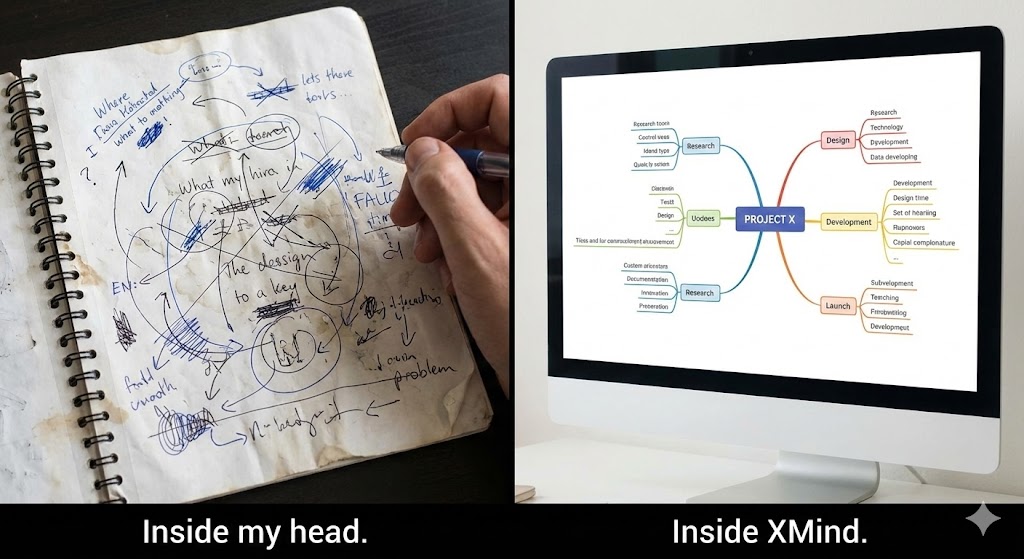
What is XMind?
XMind is a mind-mapping and brainstorming software. But calling it “software” feels too cold. It’s a Visual Thinking Engine. Unlike a text editor where you have to think linearly (Step 1, Step 2, Step 3), XMind lets you think radiantly (Idea A, Idea B, Idea C… all at once). It has been around for over a decade. While tools like Miro or FigJam are great for teams, XMind is the king of solitary deep thinking. It’s just you and your ideas.
The Features That Made Me Look Smarter Than I Am
1. The “Enter + Tab” Flow (Speed is Everything)
The most important feature of XMind isn’t a button. It’s the keyboard shortcuts.
- Enter: New Topic (Brother)
- Tab: Sub-topic (Child) Once you get into the rhythm, you don’t touch the mouse. Type idea -> Enter -> Type idea -> Tab -> Detail -> Enter -> Detail. It is fast. Scary fast. I can capture a meeting’s entire discussion in real-time, structuring it on the fly. When I share the screen, people ask: “Wait, how did you organize that so fast?” I don’t tell them it’s just
EnterandTab. I let them think I’m a genius.
2. Pitch Mode (The “I Hate PowerPoint” Button)
I hate making slides. Aligning text boxes is my personal hell. XMind has a feature called Pitch Mode. You make your mind map. You click one button. Boom. XMind automatically turns your map into a sleek, animated slideshow. It zooms into the main branch, then pans to the sub-branches. It looks dynamic and professional. I once presented a project proposal using this feature 5 minutes after finishing the map. My boss thought I spent hours on the animation. (Don’t tell him).

3. Zen Mode (Focus, Finally)
We live in a world of notifications. XMind’s Zen Mode is strict. It makes the app full screen. It hides all the toolbars. It hides the clock. It’s just you and the map. There is also a timer built-in. I combine this with the Pomodoro technique. “I will not leave this white screen until I finish mapping out Chapter 1.” It works.
The Honest Truth: The “Sync” Anxiety
I love XMind, but I have to complain about something. Cloud Sync is… complicated. They have “XMind Cloud,” but you can also save to Dropbox, iCloud, or OneDrive. Sometimes, if I edit a map on my iPad and then open it on my Mac, I get a “File Conflict” version. It’s terrifying. Did I lose my changes? Usually, it’s fine, but the file management feels a bit old-school compared to Notion or Figma where everything is just “there” instantly. Also, the mobile app is good for viewing, but trying to make a huge map on a phone screen is a nightmare. Do yourself a favor: Use a desktop.
Pros and Cons
The Pros:
- Beautiful Themes: The default skeletons and color palettes are gorgeous. Your maps never look ugly.
- Versatile Structures: It’s not just trees. You can make Fishbone diagrams (for problem-solving), Matrix tables, and Timelines.
- Export Options: You can export to PDF, PNG, Markdown, and even Word. The Word export is surprisingly clean—it turns your map into a document outline.
The Cons:
- Subscription Model: It used to be a one-time purchase. Now it’s a subscription (XMind Pro). It’s worth it, but I miss the old days.
- Sync Issues: As mentioned, be careful when switching devices.
- No Real-Time Collab: Unlike Miro, you can’t have two people editing the same map at the same time efficiently. It’s a solo tool.
Who Is This For?
- Students: For summarizing textbooks and preparing for exams.
- Writers: For outlining plots and character relationships before writing a single word.
- Project Managers: For breaking down massive tasks into small, manageable chunks.
- Me: The guy with the spaghetti brain.
Final Verdict
If your brain feels cluttered, lists won’t save you. You need structure. XMind is the best tool to bridge the gap between “Chaos” and “Plan.” It is my digital whiteboard, my therapist, and my outline generator. Download the free version. Press Enter. Press Tab. Watch your brain untangle itself.
My Rating: ⭐⭐⭐⭐ (4.7/5) — The ultimate tool for visual thinkers.