Introduction: The “Clingy Ex” of Software
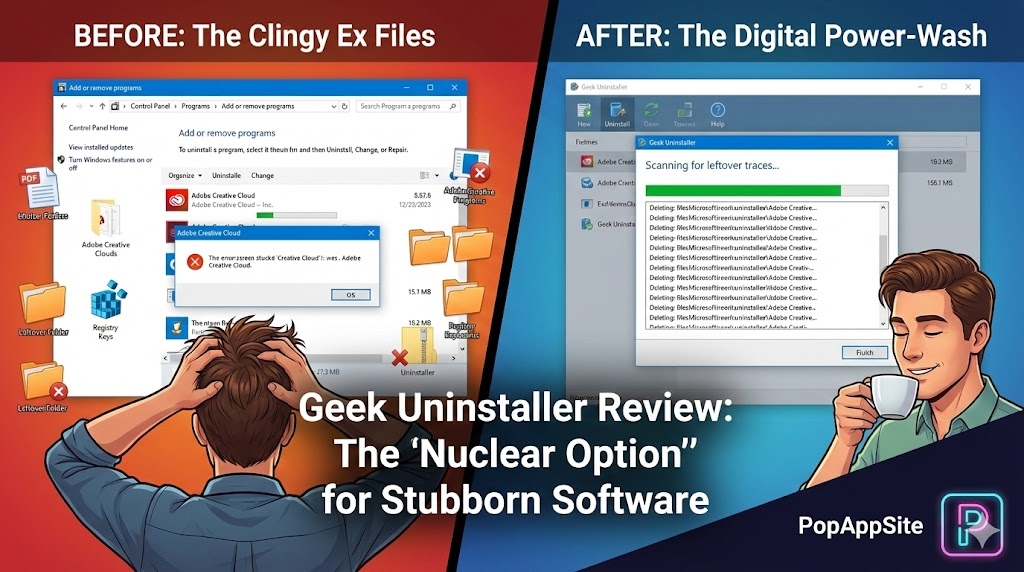
Uninstalling software on Windows is like breaking up with a clingy ex. You say “It’s over,” you click “Uninstall,” and you think they are gone. But a week later? You find their toothbrush (empty folders) in your bathroom. You find their text messages (registry keys) in your system. Some programs—especially Antivirus software and huge gaming launchers—refuse to leave. They leave behind gigabytes of “temp files” and broken shortcuts.
Enter Geek Uninstaller. I stumbled upon this tool after trying to uninstall a corrupted video game that kept crashing my PC. Windows couldn’t remove it. Geek Uninstaller looked at the file, racked a shotgun shell, and blew it into oblivion. It was satisfying. It was efficient. It was beautiful.
What is Geek Uninstaller?
It is a tiny (less than 7MB), free utility for Windows. The best part? It is portable. You don’t even have to install it. You just download the EXE file and run it. This is ironic and brilliant: You don’t need to install a program to uninstall other programs.
Its job is simple:
- Run the standard uninstaller.
- Scan for leftovers. (The magic step).
- Delete every remaining file, folder, and registry key associated with that app.
The Features That Satisfy My OCD
1. The “Post-Uninstall” Scan
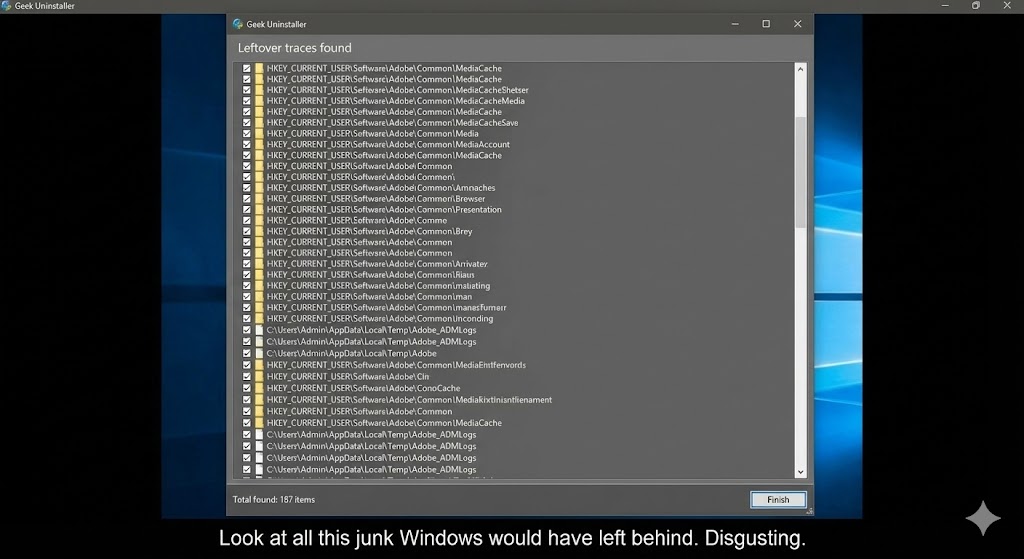
This is the dopamine hit. When you uninstall an app like “Adobe Creative Cloud” using Geek, it runs the normal uninstaller first. Then, a window pops up: “Scanning for leftover traces…” Suddenly, it shows you a list of 50+ items—hidden folders in AppData, secret registry keys—that Adobe tried to leave behind. Clicking “Finish” and watching that list disappear is the digital equivalent of power-washing a dirty driveway. It feels so good.
2. Force Removal (The Red Button)
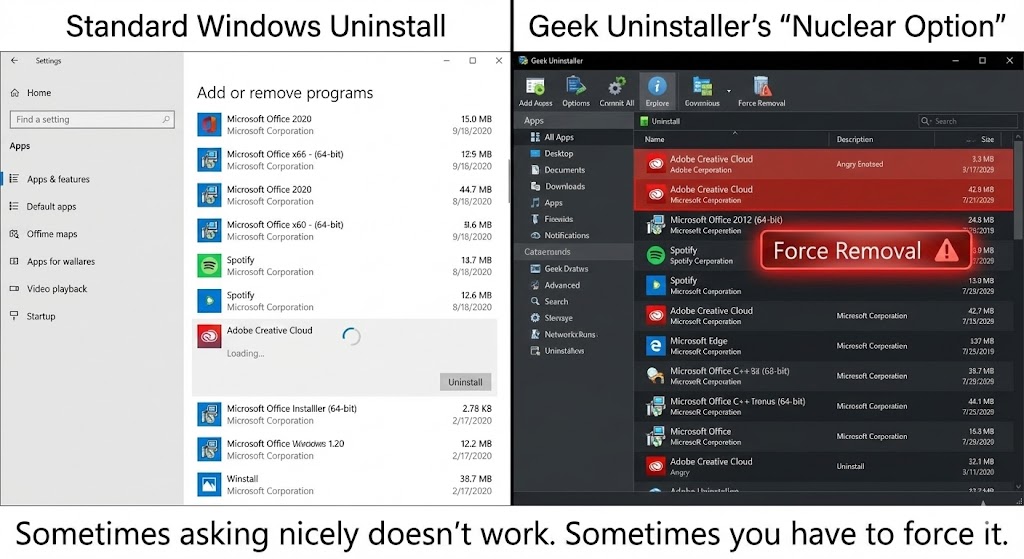
Sometimes, an app is broken. The uninstaller file is missing, or it gives you an error message. Windows will just shrug and say, “Sorry, can’t remove it.” Geek Uninstaller has a “Force Removal” option. It doesn’t ask for permission. It doesn’t run the uninstaller. It just hunts down every file that looks like that program and deletes it. It’s the “Nuclear Option,” and it has saved me from formatting my PC multiple times.
3. Instant Search (Speed)
Just like Everything (which we reviewed earlier), Geek Uninstaller loads instantly. There is no “Please wait while the list is being populated…” You open it, type the name of the app, and hit Enter. It respects your time.
The Honest Truth: Revo vs. Geek
You might ask: “Why not use Revo Uninstaller?” Revo is the famous one. And to be fair, Revo is great. It has more features (like browser cleaning). But Revo feels… heavy. It has a Pro version it wants to sell you. It has a complex UI. Geek Uninstaller is for minimalists. It’s a single file. It’s faster. It’s uglier. I prefer Geek because I don’t want my uninstaller to be a “suite.” I just want a hitman.
Pros and Cons
The Pros:
- Portable: Put it on a USB stick and fix your grandma’s computer.
- Ruthless: It finds leftovers that others miss.
- Store Apps Support: It can even uninstall those annoying pre-installed Windows Store apps (like Cortana or Xbox Game Bar).
The Cons:
- Basic UI: It looks like it belongs in Windows XP. (But we like that, right?)
- Dangerous: “Force Removal” is powerful. If you don’t know what you are doing, you could delete something important. Use with caution.
- Free vs. Pro: The free version is perfect, but they do advertise a “Pro” version (called Uninstall Tool) for features like “Real-time installation monitoring.” Honestly? You don’t need it. The free version is enough.
Who Is This For?
- The “Clean Freaks”: People who hate seeing empty folders in “Program Files.”
- Gamers: We install and uninstall huge games constantly. This keeps the drive clean.
- Tech Support: If you fix computers for a living, this needs to be on your thumb drive.
Final Verdict
I run Geek Uninstaller once a month just to check if I have any “zombie apps” installed. It’s the janitor of the Windows world. It’s not glamorous, it’s not pretty, but it cleans up the mess that everyone else leaves behind. Stop using the Windows settings menu. Get Geek.
My Rating: ⭐⭐⭐⭐⭐ (4.8/5) — Simple, brutal, and effective.