Introduction: Why is Windows Search So Dumb?
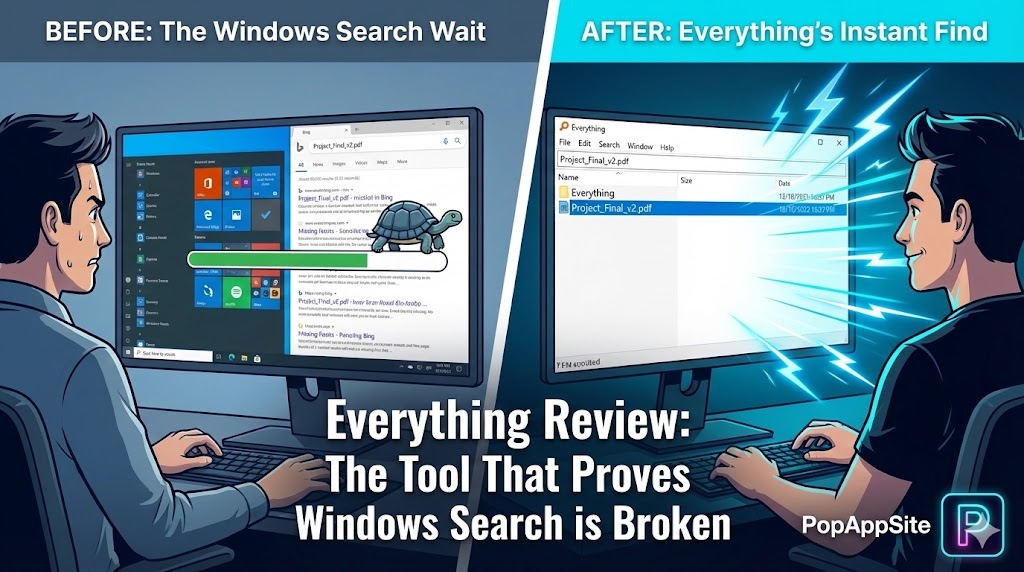
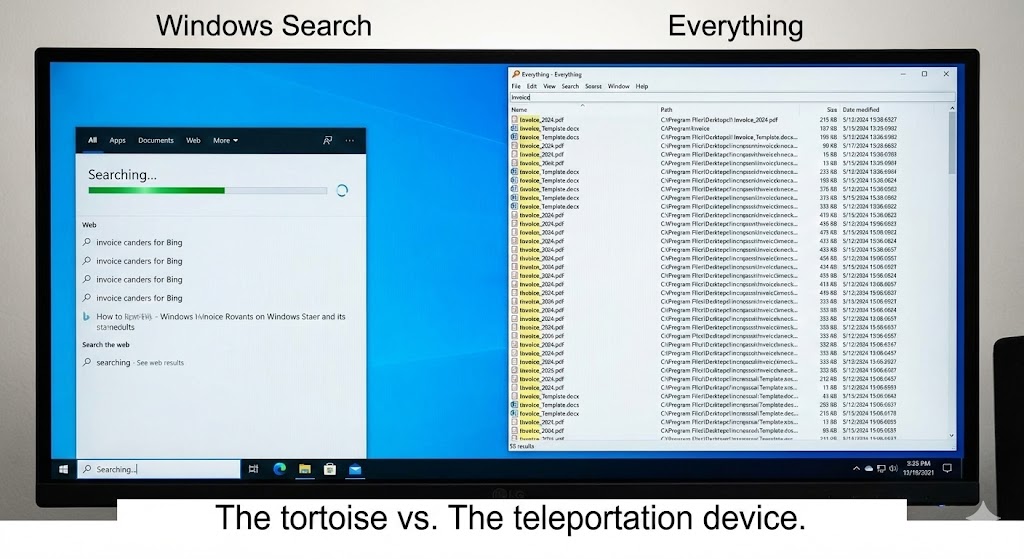
We need to talk about the elephant in the room. The Windows Search bar (you know, the one next to the Start button) is… terrible. I type “Invoice_2024.pdf”, and what does Windows do? It opens Edge and searches Bing for “How to make an invoice.” I don’t want Bing! I want my file! I spent years waiting for that little green loading bar to crawl across the screen.
Then I installed a 2MB tool called Everything. I typed “Invoice”. Boom. 2,000 results appeared instantly. Not in 5 seconds. Not in 1 second. Instantly. It was so fast I thought it was a glitch. It wasn’t. It’s just how computers should work.
What is Everything?
Everything (developed by voidtools) is a filename search engine for Windows. Unlike Windows Search, which tries to read the content of your files (and slows down your PC), Everything only looks at the names. It reads the “Master File Table” (MFT) of your hard drive directly. In plain English: It creates a map of your entire computer in about 1 second. It knows where every single file is hiding.
The Features That Saved My Sanity
1. Zero Latency (The “God Mode” Feeling)
The speed is actually hard to describe. You have to feel it. As you type, the results filter in real-time. Type P -> 1,000,000 files. Type Ph -> 50,000 files. Type Photo -> 5,000 files. Type Photo_Beach -> 1 file. It happens faster than you can blink. It makes me feel like I have a superpower. I no longer organize my folders carefully because I know I can find anything in 0.1 seconds.
2. Advanced Boolean Search (For the Nerds)
Okay, I’m not a coder, but I learned a few tricks.
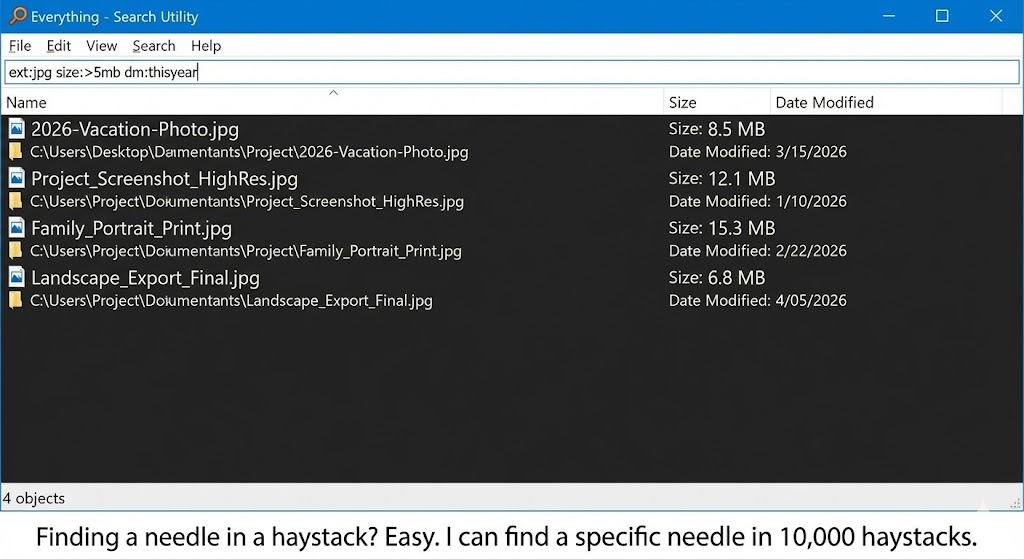
- Want to find all large video files? Type:
ext:mp4 size:>1gb - Want to find a file you made today? Type:
dm:today - Want to find a file that has “Report” but NOT “Draft”? Type:
Report !DraftIt’s like Google, but for my own messy hard drive.
3. It runs on a Potato
Modern apps are bloated. Chrome eats RAM for breakfast. Teams slows down my gaming rig. Everything uses about 15MB of RAM. It sits in the system tray, doing absolutely nothing until you need it. You can run this on a laptop from 2010 and it will still fly.
The Honest Truth: It’s Not a Complete Replacement
Everything is magic, but it has one weakness: It doesn’t search INSIDE files. If you are looking for a Word document containing the phrase “Quarterly Budget Review” but you forgot the filename, Everything can’t help you (by default). For that, you still need Windows Search (sadly) or specialized tools like DocFetcher. Also, the UI looks like it’s from Windows XP. But as we learned with 7-Zip, ugly software is usually the best software.
Pros and Cons
The Pros:
- Insanely Fast: It puts the native OS search to shame.
- Lightweight: No background indexing service that slows down your disk.
- Remote Search: You can actually set it up to search your PC from your phone (HTTP server feature).
The Cons:
- Filenames Only: Doesn’t search text contents easily.
- Intimidating for Grandma: The interface is just a giant list of files. It can look overwhelming.
- Requires Admin Rights: Because it reads the raw drive table, it needs permission.
Who Is This For?
- Digital Hoarders: If your “Downloads” folder has 5,000 files, you need this.
- Developers & Creators: When you need to find that one specific asset file (
logo_final_v2_real.png) among thousands of project files. - Anyone with a Hard Drive: Honestly, Microsoft should just buy this company and replace their search bar.
Final Verdict
Installing Everything is the first thing I do on a new computer. Before Chrome, before Steam, before Spotify. Once you get used to finding files instantly, going back to the default Windows Search feels like going back to dial-up internet. It is painful. Do yourself a favor: Download it, assign a hotkey (I use Alt + S), and never wait for a loading bar again.
My Rating: ⭐⭐⭐⭐⭐ (5/5) — The most essential utility on Windows. Period.