Introduction: Breaking Up with the “Infinite Trial”
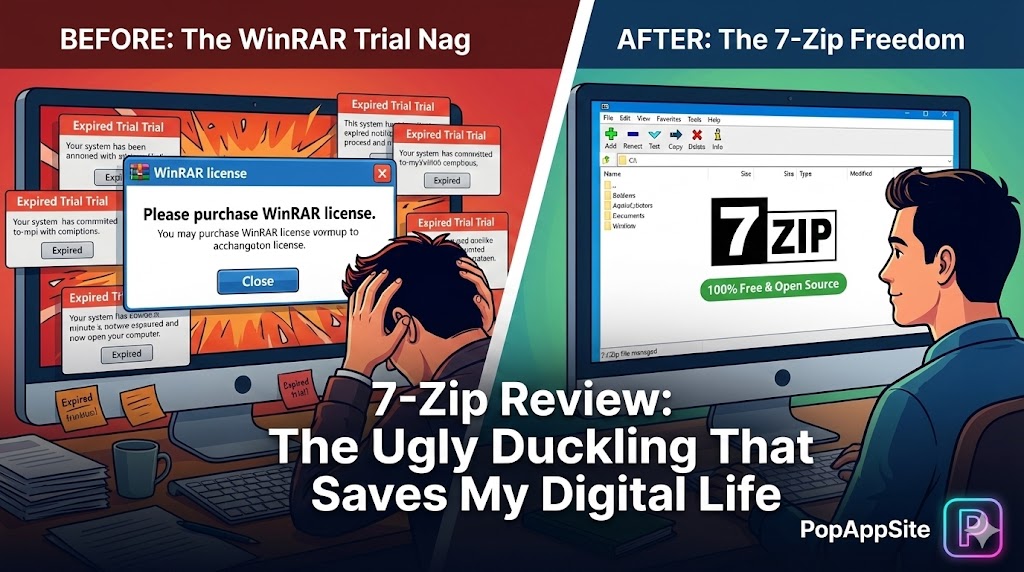
We all remember the struggle. You download a file, double-click it, and WinRAR pops up shouting: “Please purchase a license! Day 4,392 of your 40-day trial.” You click “Close” and move on. We all did it. It became a meme.
But one day, I set up a new PC and decided: No more nag screens. I installed 7-Zip. My first reaction? “Wow, this looks like it was designed in 1998 by a programmer in a basement.” My second reaction? “Wait, it just… worked? No popup? No ads? No subscription?” It was love at second sight.

What is 7-Zip?
7-Zip is a free, open-source file archiver. It does one thing, and it does it perfectly: It makes big files smaller, and it opens compressed files. That’s it. It doesn’t try to be your cloud storage. It doesn’t have an AI assistant. It doesn’t ask for your email. It is the software equivalent of a hammer: simple, ugly, and unbreakable.
The Features That Earned Its Place on My Taskbar
1. The Right-Click Magic (Context Menu)
Honestly, I haven’t opened the actual 7-Zip app window in months. I use it exclusively through the Right-Click Menu.
- Right-click a folder -> “7-Zip > Add to archive…”
- Right-click a zip file -> “7-Zip > Extract Here” It is pure muscle memory now. It feels like a native part of Windows. If I use a computer without 7-Zip installed, I feel like I’ve lost a hand.
2. The .7z Format (Squeezing Water from a Stone)
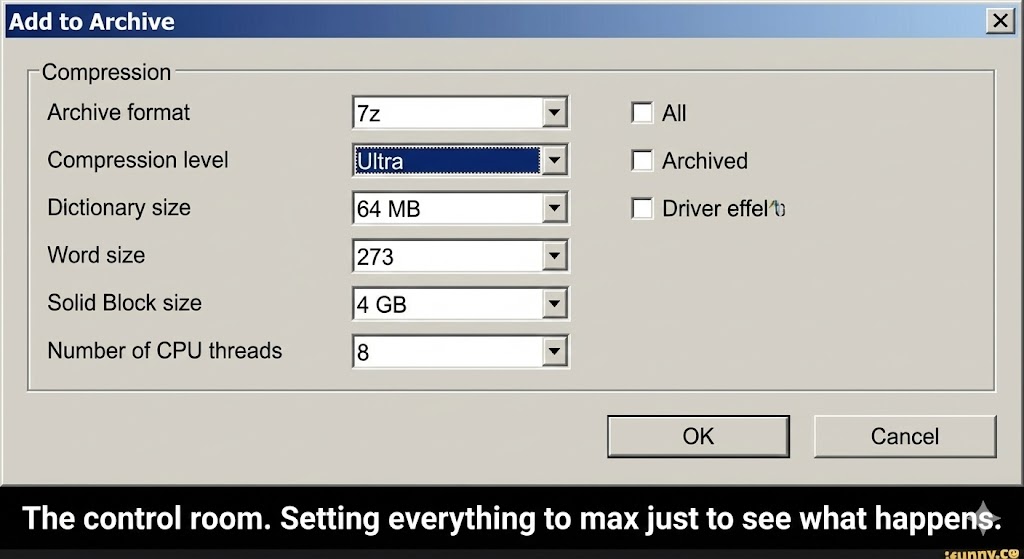
Standard .zip files are okay. But the proprietary .7z format is a beast. I once had to email a 1GB folder of high-res photos. Standard zip got it down to 900MB. 7-Zip (on “Ultra” settings) crushed it down to 600MB. It takes a bit longer to process, but when you are trying to stay under an email attachment limit or save disk space, that extra compression is a lifesaver.
3. AES-256 Encryption (Spy Stuff)
Sometimes I need to send sensitive tax documents or client data. In 7-Zip, I just type a password in the sidebar. It encrypts the file names and the content with AES-256. This is military-grade stuff. I feel like a secret agent sending a “Top Secret” briefcase, even if it’s just my invoices.
The Honest Truth: It Is aesthetically “Challenging”
Let’s not sugarcoat it: 7-Zip is ugly. The icons look like pixel art from the Game Boy Color era. The interface is grey and boring. If you care about “Modern UI” or “Material Design,” looking at 7-Zip might physically hurt you. But here’s the thing: I don’t care. In a world where every app is 500MB and uses 2GB of RAM just to look pretty, 7-Zip is a 1MB installer that uses almost zero resources. Its ugliness is its badge of honor. It says: “I am here to work, not to look pretty.”
Pros and Cons
The Pros:
- Completely FREE: Not “Freemium.” Not “Free Trial.” Actually Free (Open Source).
- No Bloatware: No background services, no auto-updaters running all the time.
- Universal Soldier: It opens everything. RAR, ZIP, TAR, GZIP, ISO… even weird formats I’ve never heard of.
The Cons:
- The Icons: Seriously, they are bad. (Though you can download custom icon packs if you really care).
- Complex Settings: The “Add to Archive” box has options like “Dictionary size” and “Word size” that will confuse average users. (Pro tip: Just leave them on default).
- Windows Only (Mostly): The official version is Windows-centric. Mac users have to use the command line version or alternatives like Keka.
Who Is This For?
- Everyone: Seriously. It should be the first thing you install on a fresh Windows PC.
- Gamers: For unzipping mods and ROMs.
- Office Workers: For compressing huge reports to bypass email limits.
Final Verdict
7-Zip is the unsung hero of the software world. It sits quietly in the background, doing the dirty work of compressing your data, never asking for a penny or a “Thank You.” It’s ugly, it’s old-school, and it’s essential. Uninstall WinRAR. Get 7-Zip. Your PC will thank you.
My Rating: ⭐⭐⭐⭐⭐ (5/5) — The gold standard for utility software.